I was working on my Expense Tracker app, ready to send a new build to TestFlight. Instead of a successful upload, I got an automated email with a single error code: ITMS-90725.
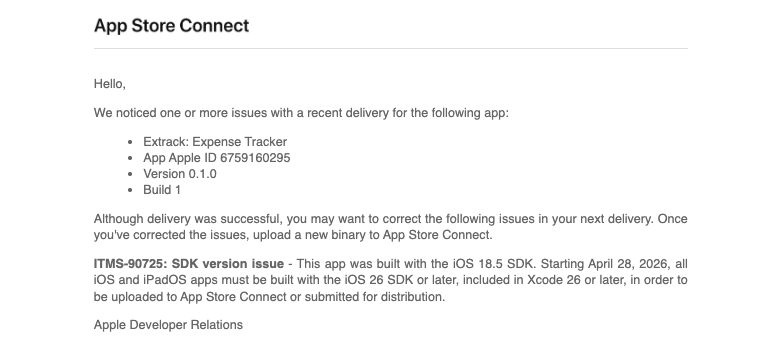
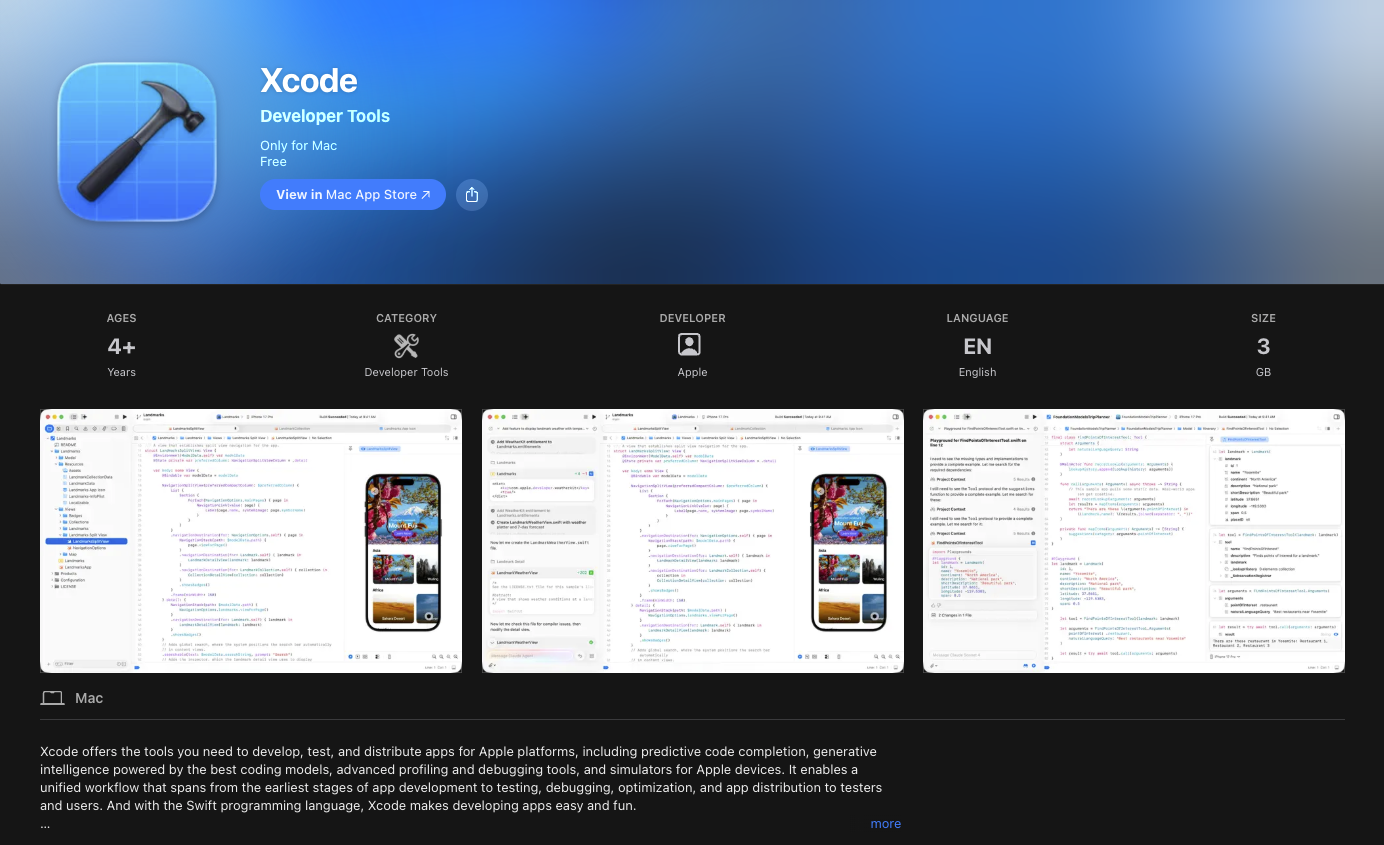
Apple required a newer version of Xcode. I started by updating my Mac to Sequoia 15.7.5. I didn’t want to jump to Tahoe just for a minor app update.
Finding the exact Xcode version to match my OS turned out to be the real problem.
The App Store gap
The Mac App Store offered no clear path. Apple’s developer downloads page wasn’t much better. I spent time clicking through release notes without finding a straightforward answer about which Xcode version would actually run on my setup.
I specifically needed Xcode 26.3.
I tried Perplexity first. At first, it gave me generic answers. It only became useful when I explicitly asked for an alternative website to track Xcode versions. It pointed me to Xcode Releases.
A better way to track releases
Xcode Releases isn’t an official Apple site, but it solves a problem Apple created. It provides a searchable table of every Xcode version, complete with OS requirements and direct download links.
According to the site, Xcode 26.3 (build 17C529) requires macOS 15.6+. This meant it would work perfectly on my Sequoia machine without forcing a Tahoe upgrade.
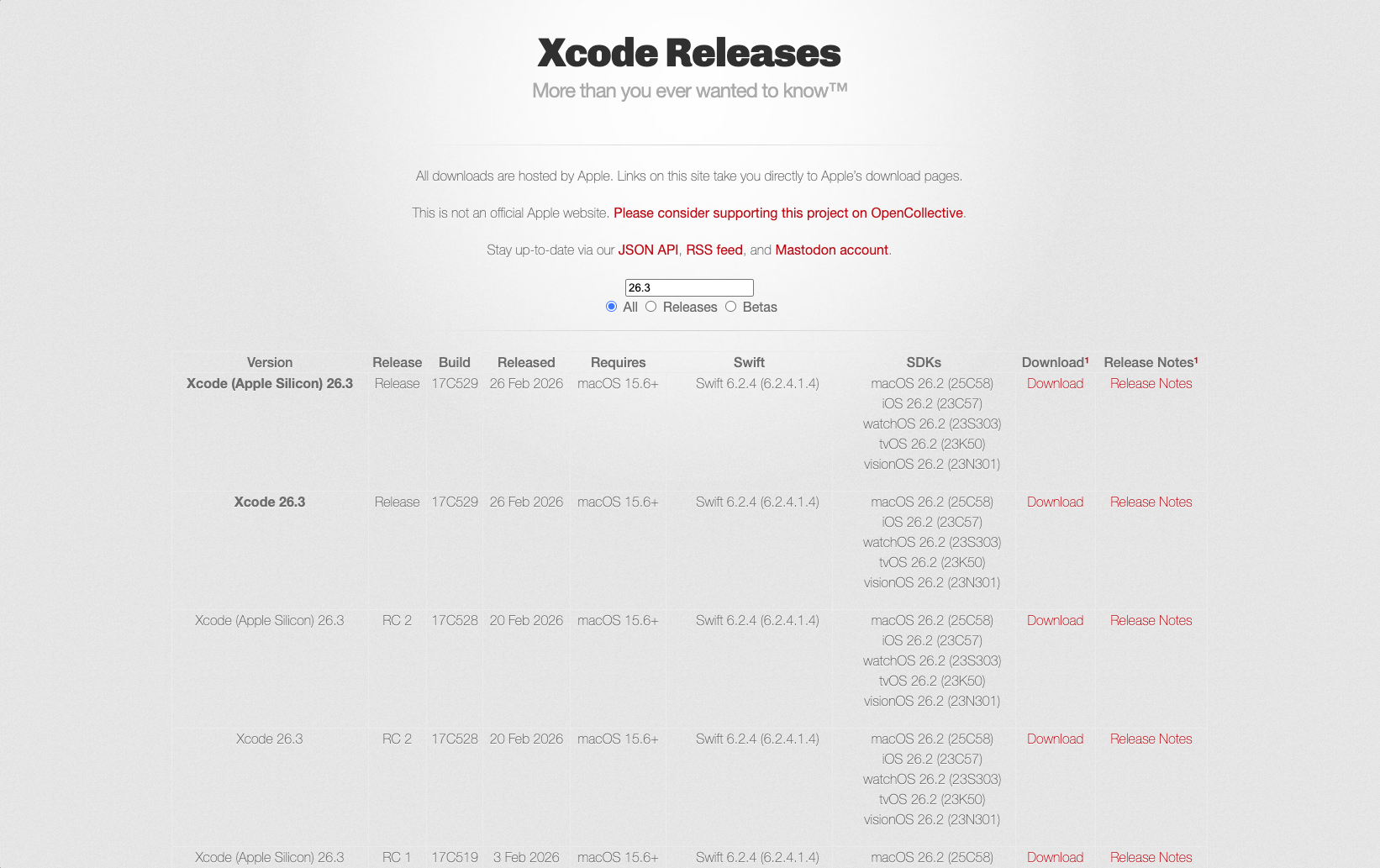
If you are stuck on Sequoia and need this specific build, you can check the search result for 26.3 or try your luck on the Apple downloads page.
Switching command line tools
When you download a specific Xcode version alongside your existing one, you have to point your command line tools to the new application.
Run this command to update the path:
sudo xcode-select -s /Applications/Xcode.appIf you rename the application to avoid conflicts, like Xcode_26_3.app, adjust the path accordingly:
sudo xcode-select -s /Applications/Xcode_26_3.appAlways verify the switch worked. Run xcodebuild -version to confirm your system is actually using the build you expect.
If an ITMS-90725 error brought you to this page, skip the App Store entirely. Check the release requirements on a dedicated tracking site, download the exact version, and get back to shipping. I hope that can help.